
Icons
Icon picker
Icons in Homarr are automatically requested from multiple sources:
- Dashboard Icons - Our recommended source with more than 1,888 curated, high-quality icons
- selfh.st icons
- Simple icons
- Tabler icons
- Papirus icons
- Homelab Svg assets
- Local icons: automatically fetched from the medias feature
Using these icon sources, Homarr provides a total collection of over 11,000 icons at your fingertips. The image picker searches this collection after a short typing delay. When a name is available, such as an app or search engine name, the picker uses it as the initial search. Results show your locally uploaded images first, followed by SVG icons and then other image formats.
GitHub icon indexes are refreshed on startup and weekly. A GitHub rate limit can temporarily prevent Dashboard Icons, selfh.st, and Simple Icons from refreshing; previously cached icons remain available. Invalid or incomplete GitHub tree responses also leave the cached provider icons intact. The server log reports the HTTP status and, when GitHub provides them, remaining request quota and reset time (Unix seconds). After the limit resets, an administrator can rerun Icons Updater under Manage → Tools → Tasks. Direct image URLs and local uploads remain usable while indexing is unavailable.
Finding Missing Icons
If you can't find the icon you're looking for in Homarr's built-in picker, we strongly recommend checking Dashboard Icons. It offers a modern, user-friendly interface and a curated collection of high-quality icons specifically designed for dashboards and app directories.
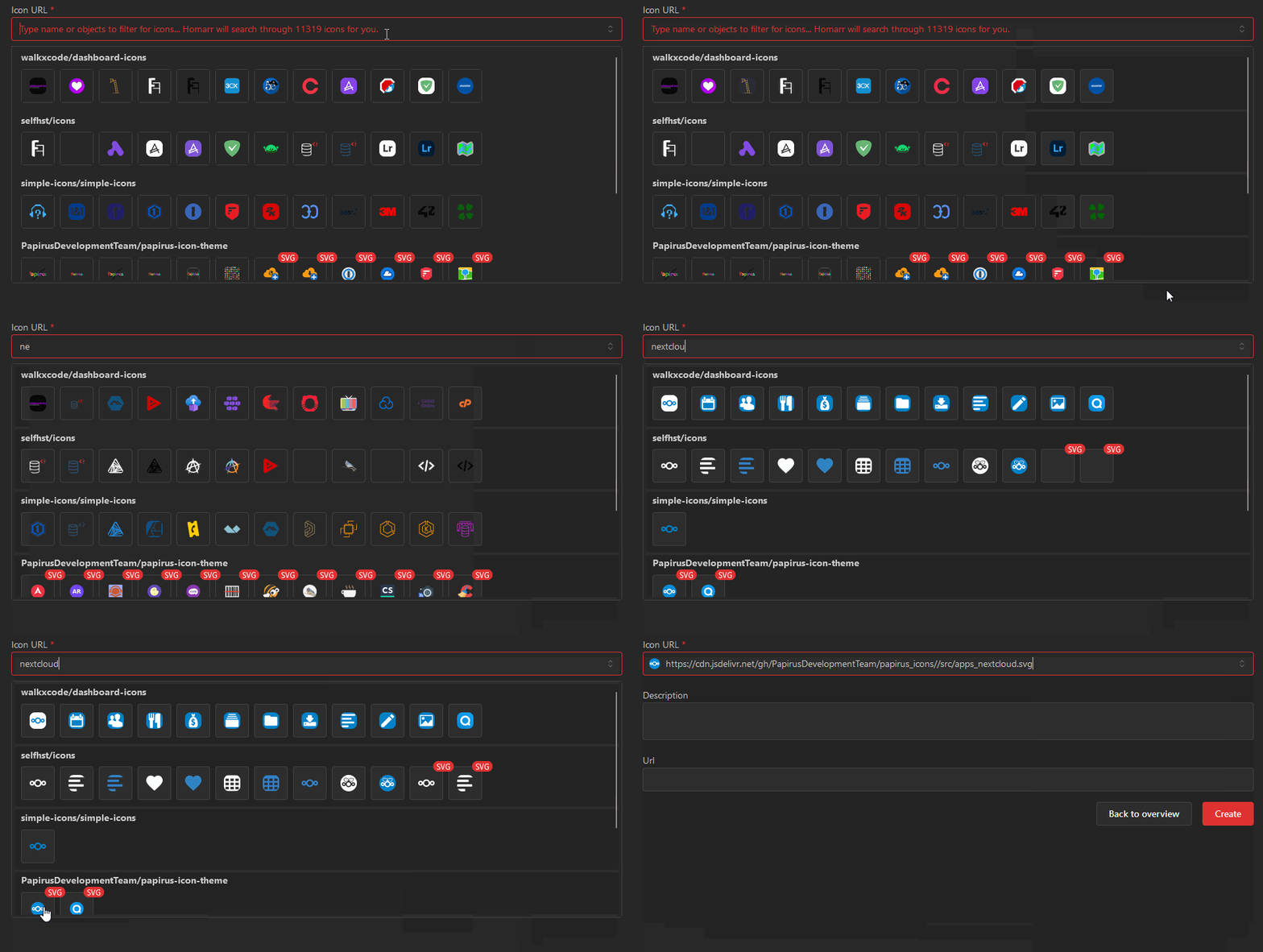
Icons that are high quality and printable (SVG) are marked with a red badge "SVG" at the top right.
You can clear the selected image with the clear button or the usual keyboard shortcut for deleting a line (Command+Backspace on macOS or Control+Backspace on other platforms). Clearing the field does not restore the previous image.
Icon of the app website
When an app has a URL, the picker offers the icon of that website as its first suggestion. Homarr requests the page the URL points to without its credentials, query string or fragment. It reads the <link rel="icon"> and <link rel="apple-touch-icon"> declarations in the head of that page and falls back to /favicon.ico of the same origin. The suggestion is only requested while the picker is open and it is never selected for you, so an image you picked yourself is never replaced. Nothing is suggested when neither a declared icon nor the /favicon.ico fallback is available.
Using external icons
If you don't find the icon you're looking for on Dashboard Icons or wish to use a different source, you can simply enter a URL that points to an icon. Direct HTTP(S) image URLs are used as entered instead of being searched in the built-in repositories. The picker previews the image and shows whether it loaded successfully. It is important that the URL directly points to the file without any advertisements or elements around it.
Uploading a local image
Users with media upload permission can select Upload image next to the field. After the upload finishes, the new local image is selected immediately and is available at the top of future searches.